 ADevGuide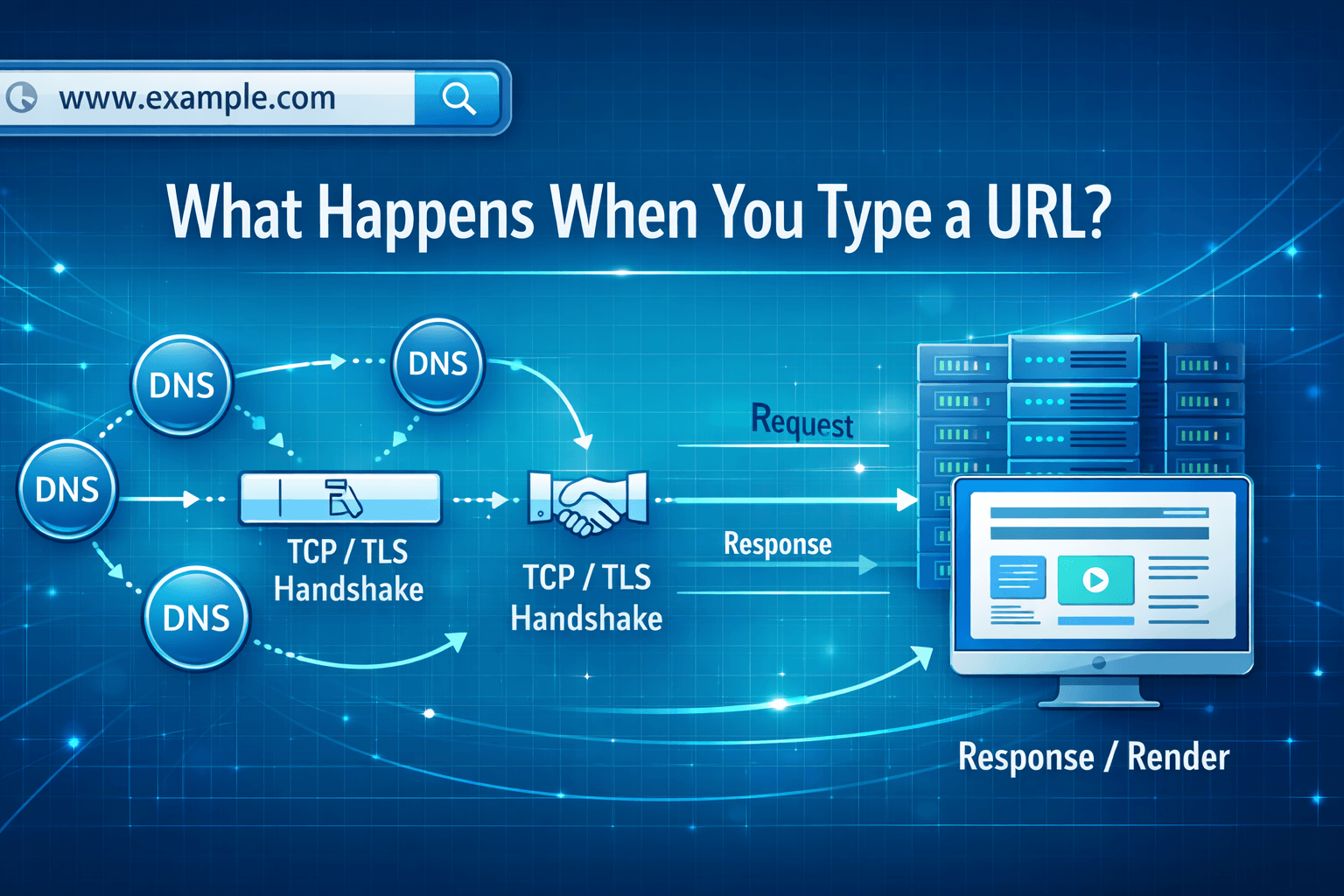
Typing adevguide.com looks simple, but the browser, DNS infrastructure, transport protocols, CDN edge, origin servers, and rendering engine all coordinate before you see content. This guide walks through that full path in production-level detail. For primers on the individual layers, see how DNS works, how the internet works for developers, and how CDNs work.
Table of Contents
Open Table of Contents
- URL Anatomy in 30 Seconds
- The Full Navigation Timeline
- Step 1: Address Bar Input Becomes a Navigation
- Step 2: Local Fast Paths (Cache, Service Worker, HSTS)
- Step 3: DNS Resolution for adevguide.com
- Step 4: Connection Setup (TCP or QUIC)
- Step 5: TLS Handshake and Certificate Validation
- Step 6: HTTP Request Through CDN and Origin
- Step 7: Backend Work to Produce the Response
- Step 8: Browser Rendering Pipeline
- Step 9: Secondary Fetches and Interactivity
- Step 10: Why Repeat Visits Are Faster
- Common Bottlenecks and Debug Clues
- Developer Debugging Checklist
- Interview Questions
- 1. What is the difference between DNS time, connection time, and TTFB in a browser waterfall?
- 2. Why can a page still feel slow when the main HTML request is fast?
- 3. How does a CDN change the URL request path?
- 4. What changes when the browser uses HTTP/3 instead of HTTP/2?
- 5. In practical debugging, when should I suspect TLS rather than application code?
- 6. Why are redirects important in “what happens after typing a URL” interviews?
- Conclusion
- References
- YouTube Videos
URL Anatomy in 30 Seconds
Example URL:
https://adevguide.com/blog?sort=latest#top
https-> scheme/protocoladevguide.com-> host/domain/blog-> path?sort=latest-> query parameters#top-> fragment (used only by browser, not sent to server)
If you type only adevguide.com, the browser usually upgrades it to https://adevguide.com/ based on browser defaults and HSTS policies.
The Full Navigation Timeline
flowchart TD
    A[Type adevguide.com] --> B[Parse URL + policy checks]
    B --> C{Local response available?}
    C -->|Yes| D[Serve from browser cache or Service Worker]
    C -->|No| E[DNS resolution]
    E --> F[Connection setup: TCP or QUIC]
    F --> G[TLS handshake + cert validation]
    G --> H[HTTP request to CDN edge]
    H --> I{Edge cache hit?}
    I -->|Yes| J[Edge response]
    I -->|No| K[Forward to origin app]
    K --> L[(Origin cache/DB/services)]
    L --> K
    K --> J
    J --> M[Parse HTML]
    M --> N[Fetch CSS, JS, fonts, images]
    N --> O[Layout + paint]
    O --> P[Hydration + JS execution]
    P --> Q[Interactive page]
    Q --> R[User click, scroll, search]
    R --> H
    J --> S[Store response in browser cache]
    S --> C

    classDef flow fill:#e8f5e9,stroke:#1b5e20,stroke-width:2px,color:#000000;
    class A,B,C,D,E,F,G,H,I,J,K,L,M,N,O,P,Q,R,S flow;
Step 1: Address Bar Input Becomes a Navigation
When you press Enter after typing adevguide.com, the browser does more than string parsing:
- It decides this is a URL-like input (not a search query).
- It normalizes it into a canonical URL, usually
https://adevguide.com/. - It creates a navigation request in the browser networking stack.
- It checks security policies (mixed content, HSTS preload, private network rules).
If parsing fails, everything stops before any DNS or network call.
Step 2: Local Fast Paths (Cache, Service Worker, HSTS)
Before touching DNS or sockets, the browser checks local sources:
- Memory cache (same session, fastest path).
- Disk cache (persisted from previous visits).
- Service Worker interception (can return custom cached/offline response).
- HSTS state (force HTTPS without trying HTTP first).
If cache policy allows, the browser may return HTML immediately and skip the whole external network path.
Step 3: DNS Resolution for adevguide.com
If no usable DNS cache entry exists, resolver recursion begins. For a dedicated deep dive, read how DNS works — including record types, TTL and caching fundamentals that control this phase.
flowchart TD
    A[Browser asks OS resolver] --> B{OS cache hit?}
    B -->|Yes| C[Return IP to browser]
    B -->|No| D[Query recursive resolver]
    D --> E{Resolver cache hit?}
    E -->|Yes| C
    E -->|No| F[Query Root nameserver]
    F --> G[Query .com TLD nameserver]
    G --> H[Query authoritative NS for adevguide.com]
    H --> I[Answer: A, AAAA, or CNAME + TTL]
    I --> J{CNAME target?}
    J -->|Yes| D
    J -->|No| K[Store in resolver cache]
    K --> C

    classDef dns fill:#fff3e0,stroke:#ef6c00,stroke-width:2px,color:#000000;
    class A,B,C,D,E,F,G,H,I,J,K dns;
Typical details in this phase:
- Resolver may return IPv4 (
A) and/or IPv6 (AAAA) records. - CDN setups often return a CNAME before final edge IP answers.
- TTL controls how long this answer is reused.
- Negative answers (
NXDOMAIN) are also cached for a period.
Without DNS resolution, browser has no destination IP to connect to.
Step 4: Connection Setup (TCP or QUIC)
Modern browsers can use different transports:
- TCP path (common for HTTP/1.1 and HTTP/2).
- QUIC path (for HTTP/3 over UDP).
For TCP, three-way handshake happens:
SYNSYN-ACKACK
The browser may race IPv6 vs IPv4 using Happy Eyeballs to reduce latency.
Step 5: TLS Handshake and Certificate Validation
HTTPS requires TLS before application data:
- ClientHello (supported ciphers, ALPN protocols like
h2/h3, SNI host). - ServerHello + certificate chain.
- Browser verifies certificate validity, hostname match, trust chain, revocation signals.
- Key agreement and session key setup.
- Encrypted channel established.
If certificate validation fails, navigation is blocked or warned before your app code runs.
Step 6: HTTP Request Through CDN and Origin
Once secure transport is ready, request flows through edge infrastructure — the same edge path explained in how CDNs work and fronted by a web server like Nginx or Apache:
flowchart TD
    A[Browser request] --> B[CDN edge POP]
    B --> C{WAF/rate-limit pass?}
    C -->|No| D[Reject: 403 or 429]
    D --> A
    C -->|Yes| E{Edge cache hit?}
    E -->|Yes| F[Return cached response]
    E -->|No| G[Forward to load balancer]
    G --> H[Origin web/app server]
    H --> I[(Redis, DB, internal APIs)]
    I --> H
    H --> J[Origin response + headers]
    J --> K[Edge compression and policy]
    K --> F
    F --> L[Browser receives bytes]
    L --> M{Redirect response?}
    M -->|Yes| A
    M -->|No| N{Cacheable by browser?}
    N -->|Yes| O[Store in browser cache]
    N -->|No| P[Skip cache store]

    classDef edge fill:#e3f2fd,stroke:#1565c0,stroke-width:2px,color:#000000;
    class A,B,C,D,E,F,G,H,I,J,K,L,M,N,O,P edge;
The first request usually looks like:
GET /blog?sort=latest HTTP/1.1
Host: adevguide.com
User-Agent: ...
Accept: text/html
Common edge decisions:
- Bot filtering and WAF rules.
- Redirect rules (
httptohttps,wwwto apex, trailing slash normalization). - Cache key lookup (path + query + headers + cookies by policy).
- Compression and protocol-specific optimizations.
Step 7: Backend Work to Produce the Response
If edge misses cache, origin handles request:
- Router maps URL to handler/page.
- App validates params, cookies, auth context.
- App reads Redis/cache first, then database/services.
- App renders HTML (SSR) or returns JSON for API endpoints.
- Response headers are attached (
Cache-Control,ETag,Set-Cookie, CSP, etc.).
Then bytes travel back to browser with status:
200 OKfor success301/308for permanent redirects302/307for temporary redirects404not found500server errors
Step 8: Browser Rendering Pipeline
After first HTML bytes arrive, browser starts rendering work:
flowchart TD
    A[HTML bytes] --> B[Build DOM]
    B --> C[Discover CSS, JS, fonts]
    C --> D[Fetch CSS]
    D --> E[Build CSSOM]
    B --> F[Combine DOM + CSSOM]
    E --> F
    F --> G[Render tree]
    G --> H[Layout]
    H --> I[Paint]
    I --> J[Composite to screen]
    C --> K[Fetch JS]
    K --> L[Execute JS]
    L --> M{DOM or style changed?}
    M -->|Yes| H
    M -->|No| N[Stable frame]
    C --> O[Fetch API data]
    O --> L
    J --> P{User interaction?}
    P -->|Yes| L
    P -->|No| Q[Idle]

    classDef render fill:#f3e5f5,stroke:#6a1b9a,stroke-width:2px,color:#000000;
    class A,B,C,D,E,F,G,H,I,J,K,L,M,N,O,P,Q render;
Important behavior:
- Rendering is incremental, so user may see content before all assets complete.
- CSS can block first paint.
- Heavy synchronous JavaScript can delay interactivity.
- Fonts can cause layout shifts if loading strategy is poor.
Step 9: Secondary Fetches and Interactivity
Initial HTML usually triggers more requests:
- CSS, JS bundles, images, fonts.
- API calls triggered by hydration/client-side code.
- Third-party scripts (analytics, ads, chat widgets).
These requests can reuse existing connection pools, DNS cache, and TLS sessions, but third-party domains may trigger brand-new DNS/TCP/TLS paths.
Step 10: Why Repeat Visits Are Faster
Second and later visits are often much faster because of:
- Warm browser cache (HTML/assets if cacheable).
- Warm DNS cache (domain already resolved).
- Reused TLS sessions and open connections.
- CDN edge cache already populated.
- Browser code cache for previously parsed JavaScript.
Common Bottlenecks and Debug Clues
Slow before request starts
Usually DNS delay, IPv6/IPv4 fallback, or TCP/TLS/QUIC setup overhead.
Fast TTFB but slow visual load
Usually large JS bundles, render-blocking CSS, font delays, or image weight.
Random slowness by geography
Often CDN edge distance, resolver locality, or regional packet loss.
Works locally but fails in production
Often wrong DNS record, cert/SAN mismatch, bad redirect rule, or proxy/header misconfiguration.
Developer Debugging Checklist
Use this quick checklist:
- Verify DNS:
nslookup yourdomain.comordig yourdomain.com +trace - Verify TLS certificate and chain: browser security tab or SSL checker tools
- Inspect network waterfall in DevTools: DNS, connect, SSL, TTFB, download phases
- Check response headers: cache, compression, content-type, security
- Check server and proxy logs with request ID correlation
- Check Core Web Vitals: LCP, CLS, and INP for real user rendering impact
Interview Questions
1. What is the difference between DNS time, connection time, and TTFB in a browser waterfall?
DNS time is how long it takes to resolve domain to IP. Connection time is TCP setup (and TLS setup for HTTPS). TTFB (time to first byte) starts after request is sent and ends when first response byte arrives.
If DNS and connection are fast but TTFB is high, your backend path is likely slow (application logic, database, cache miss, or overloaded upstream).
2. Why can a page still feel slow when the main HTML request is fast?
A fast first HTML response does not guarantee fast rendering. The browser still needs CSS, JavaScript, fonts, and images before full visual completion.
Large JS bundles, blocking CSS, and heavy images often dominate user-perceived latency even when network handshake and TTFB look good.
3. How does a CDN change the URL request path?
With CDN enabled, DNS usually resolves to an edge location first. The edge may serve cached content directly or forward to origin when cache is missing or stale.
This typically reduces latency for static assets and shields origin from burst traffic, but cache key mistakes can cause low hit ratio and inconsistent behavior.
4. What changes when the browser uses HTTP/3 instead of HTTP/2?
HTTP/3 runs on QUIC over UDP instead of TCP. That changes transport behavior: no TCP head-of-line blocking across multiplexed streams and faster connection migration on network changes.
You still do TLS (inside QUIC), but handshake and loss recovery behavior differ. In weak mobile networks, this can reduce latency spikes.
5. In practical debugging, when should I suspect TLS rather than application code?
Suspect TLS when failures happen before request reaches app logs, or when browser shows certificate errors, protocol mismatch, or handshake failures.
Check certificate validity dates, hostname/SAN match, intermediate chain, and TLS version compatibility before digging into application traces.
6. Why are redirects important in “what happens after typing a URL” interviews?
Redirects add extra round trips, and each hop repeats parts of request flow, including potential DNS/connect overhead for new hosts.
In interviews, mentioning redirect chains shows you understand real production behavior and why canonical URLs and redirect hygiene matter for both performance and SEO.
Conclusion
When you type adevguide.com, the browser executes a full distributed workflow: normalize URL, resolve DNS, establish secure transport, traverse edge/origin systems, and run rendering pipelines before pixels appear. Knowing this sequence makes debugging significantly faster because you can isolate exactly which stage is slow or broken. Continue with the Web Fundamentals hub and the Internet and Web Foundations series for the full learning path.
References
- MDN: How the Web Works https://developer.mozilla.org/en-US/docs/Learn_web_development/Getting_started/Web_standards/How_the_web_works
- RFC 9110 - HTTP Semantics https://www.rfc-editor.org/rfc/rfc9110
- MDN: DNS https://developer.mozilla.org/en-US/docs/Glossary/DNS
- RFC 9293 - Transmission Control Protocol (TCP) https://www.rfc-editor.org/rfc/rfc9293
- RFC 8446 - TLS 1.3 https://www.rfc-editor.org/rfc/rfc8446
- Google Web Fundamentals: Rendering Performance https://web.dev/articles/rendering-performance
- MDN: HTTP Caching https://developer.mozilla.org/en-US/docs/Web/HTTP/Caching
YouTube Videos
- “What is DNS? (Domain Name System)” - PowerCert Animated Videos https://www.youtube.com/watch?v=mpQZVYPuDGU
- “DNS Explained” - IBM Technology https://www.youtube.com/watch?v=72snZctFFtA
- “How a DNS Server (Domain Name System) works” - CBT Nuggets https://www.youtube.com/watch?v=2ZUxoi7YNgs
- “DNS and How it Works” - NetworkChuck https://www.youtube.com/watch?v=UVR9lhUGAyU