 ADevGuide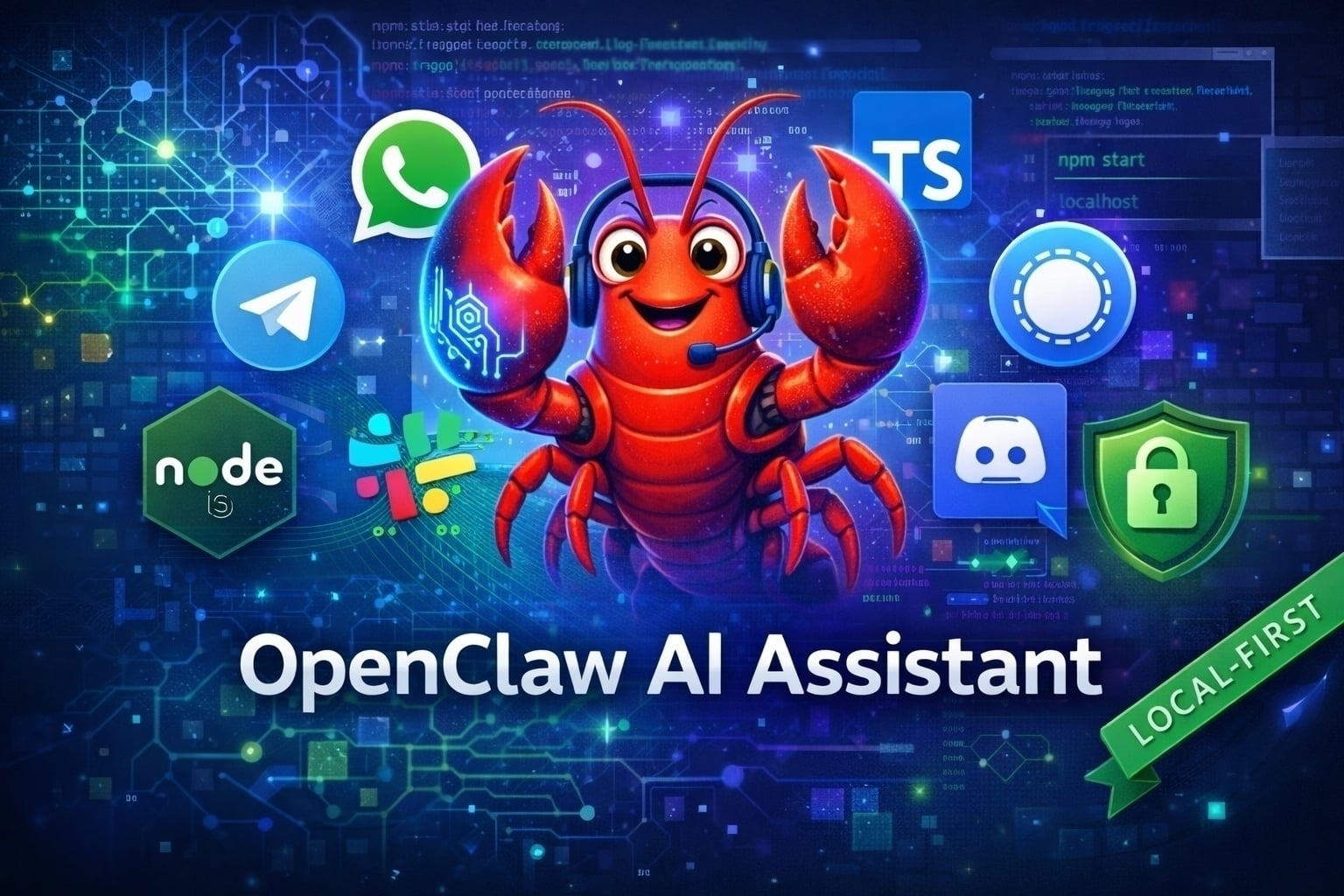
Discover OpenClaw, the revolutionary local-first personal AI assistant platform that connects powerful language models like Claude and GPT to your favorite messaging apps while keeping you in complete control of your data and privacy.
The Story Behind OpenClaw
OpenClaw’s journey began with a straightforward goal: creating Warelay, a simple WhatsApp gateway that would relay messages to AI models. The initial implementation worked well, serving its purpose as a practical tool for messaging integration.
However, the project’s identity evolved through an interesting series of transformations. The first iteration saw it renamed to Clawd (housed in Clawdbot), embracing a more distinctive character. This naming convention lasted until early 2026, when the team received a trademark-related inquiry from Anthropic, prompting yet another evolution.
The second transformation brought Molty and Moltbot into existence. While functional, this naming scheme presented pronunciation challenges and lacked the memorable quality the creators envisioned for a platform with broader ambitions.
On January 30, 2026, the project underwent its final transformation, emerging as OpenClaw. This rebrand represented more than just a name change - it symbolized the platform’s evolution from a simple relay service to a comprehensive AI gateway. The migration happened swiftly: within hours, the GitHub repository was renamed, npm packages were republished, the @openclaw handle was secured on X (with verification), and the announcement generated over 200,000 views.
The name carries symbolic meaning: combining “Claw” with the concept of a TARDIS (a reference to time-traveling capabilities), it represents the platform’s ability to connect users across multiple dimensions - different messaging platforms, AI models, and communication contexts. From its origins as a WhatsApp relay to its current form as a multi-channel AI infrastructure platform, OpenClaw has maintained its core mission while expanding its capabilities dramatically.
Table of Contents
Open Table of Contents
What is OpenClaw?
OpenClaw is an open-source, local-first AI assistant platform that serves as a unified gateway connecting advanced language models (Claude Opus, GPT-4, Gemini) to your everyday communication channels like WhatsApp, Telegram, Slack, Discord, Signal, and iMessage. Think of it as your private AI infrastructure running on your own hardware. Under the hood it can leverage standards like the Model Context Protocol for tool connectivity and the broader patterns explored in the AI Engineering hub.
The Core Concept
flowchart TD
  WA[WhatsApp] --> G[Local OpenClaw gateway]
  TG[Telegram] --> G
  SL[Slack] --> G
  DC[Discord] --> G
  IM[iMessage] --> G
  G --> M[Claude GPT or other model]
  M --> SK[Skills]
  SK --> T[Your tools]
  T --> G
What Makes OpenClaw Unique
- 🔒 Privacy-First: Runs entirely on your machine - no cloud middleman
- 🎯 Unified Inbox: One AI assistant accessible from all your messaging apps
- 🔌 Model Agnostic: Switch between Claude, GPT, Gemini, or local models
- 🛠️ Extensible: Custom skills and tool integrations
- 🔐 Secure by Default: DM pairing, allowlists, permission controls
- 🌍 Cross-Platform: macOS, Linux, Windows (WSL2)
Real-World Example: Like Zapier for AI
Just as Zapier connects different apps to automate workflows, OpenClaw connects different communication channels to a single AI brain. But unlike cloud services, everything runs locally on your hardware.
The Origin and Philosophy
OpenClaw was created to solve three fundamental problems:
-
Privacy Paradox: AI assistants are most useful when they have context about your life, work, and communications - but that’s exactly what you shouldn’t share with third-party servers.
-
Platform Fragmentation: ChatGPT works in a browser. Claude has its own app. Each AI provider creates a walled garden, forcing you to switch contexts constantly.
-
Vendor Lock-In: What happens when your favorite AI service changes pricing, shuts down, or modifies its terms? Your workflows break.
The OpenClaw Solution:
flowchart TD
  subgraph TR[Traditional AI services]
    TD[Your data] --> TC[Cloud servers]
    TC --> TM[AI models]
    TM --> TRS[Your response]
  end

  subgraph OC[OpenClaw approach]
    OD[Your data] --> OG[Local gateway]
    OG --> OA[AI API only]
    OA --> ORS[Your response]
  end

  TRS --> T1[No privacy and lock-in risk]
  ORS --> T2[Full control and multi-channel access]
The project’s first commit (November 2023) was a simple TypeScript script that forwarded Telegram messages to Claude’s API. Within months, the community contributed support for WhatsApp, Slack, Discord, and Signal. By mid-2024, the skills system emerged, allowing users to extend their AI with custom capabilities. Today, OpenClaw is trusted by developers, privacy advocates, and small teams worldwide who want the power of AI without compromising their values.
Project Leadership:
- Peter Steinberger (@steipete) - Primary creator and project architect
- Mario Zechner (@badlogicgames) - Pi framework creator, security architecture
- Community Contributors - Active open-source community driving features and improvements
Evolution Timeline:
- Phase 1: Warelay - Initial WhatsApp gateway implementation
- Phase 2 (Jan 27, 2026): Clawd/Clawdbot - First major rebrand
- Phase 3 (Mid-Jan 2026): Molty/Moltbot - Second iteration following trademark considerations
- Phase 4 (Jan 30, 2026): OpenClaw - Final brand identity
- Complete ecosystem migration (GitHub, npm, social media)
- Verified social media presence established
- Rapid community adoption (200K+ announcement impressions)
- Current State: Production-ready platform with 15+ channel integrations, 1,500+ GitHub stars, active development
Why OpenClaw Matters
The Problem with Current AI Assistants
Before OpenClaw:
❌ ChatGPT web interface only (no WhatsApp integration)
❌ Claude limited to their app (no Telegram bots)
❌ Each platform requires separate setup
❌ Your conversations stored in company servers
❌ Limited customization and control
❌ Monthly subscriptions per service
With OpenClaw:
✅ Use Claude/GPT from ANY messaging app
✅ One setup, unlimited channels
✅ All data stays on your machine
✅ Full customization with skills
✅ Own your AI infrastructure
✅ Pay only for LLM API usage
Real-World Example: How Stripe Uses Personal AI
While Stripe doesn’t publicly confirm using OpenClaw specifically, companies are increasingly deploying self-hosted AI assistants for:
- Internal documentation searches
- Code review automation
- Customer support (with full data control)
- Engineering productivity tools
OpenClaw enables these use cases for individuals and SMBs without enterprise budgets.
Core Architecture
System Components
flowchart TD
  G[Gateway control plane] --> C[Channels fifteen plus platforms]
  C --> A[Agents AI workers]
  A --> S[Skills capabilities]

  G --> G1[Session management]
  G --> G2[Channel routing]
  G --> G3[Authentication]
  G --> G4[Web dashboard localhost 19000]

  C --> C1[WhatsApp Telegram Slack Discord]
  C --> C2[Signal iMessage Teams Matrix]

  A --> A1[Multi-agent routing]
  A --> A2[Isolated workspaces]
  A --> A3[Custom system prompts]

  S --> S1[ClawHub registry]
  S --> S2[Custom skills]
  S --> S3[Tool integrations]
How It Works
- Message Arrives: User sends message via WhatsApp/Telegram/etc.
- Gateway Routing: Gateway identifies user, applies security rules
- Agent Processing: Message routed to appropriate AI agent
- Skill Execution: Agent uses installed skills and tools
- LLM Processing: Claude/GPT generates response
- Response Delivery: Reply sent back through original channel
Key Features and Capabilities
1. Multi-Channel Support
Connect your AI to 15+ messaging platforms:
| Platform | Setup | Best For |
|---|---|---|
| Telegram | ⭐ Easy | Quick bots, public assistants |
| Slack | ⭐⭐ Medium | Team collaboration |
| Discord | ⭐⭐ Medium | Community servers |
| ⭐⭐⭐ Advanced | Family/personal use | |
| Signal | ⭐⭐⭐ Advanced | Privacy-focused users |
| iMessage | ⭐⭐⭐⭐ Expert | Apple ecosystem |
Example Configuration:
{
  channels: {
    telegram: {
      enabled: true,
      botToken: "YOUR_BOT_TOKEN",
      allowFrom: ["@username"],
    },
    slack: {
      enabled: true,
      appToken: "xapp-***",
      botToken: "xoxb-***",
      dm: { policy: "pairing" },
    },
    whatsapp: {
      enabled: true,
      allowFrom: ["+15555550123"],
      groups: {
        "*": { requireMention: true },
      },
    },
  },
}
2. Multi-Model Support
Supported LLM Providers:
{
  agent: {
    model: "anthropic/claude-opus-4-6", // Recommended
    // Or choose:
    // "openai/gpt-4-turbo"
    // "openai/o1-mini"
    // "google/gemini-pro-1.5"
    // "ollama/llama3.1"

    temperature: 0.7,
    maxTokens: 4096,
  },
}
Why Claude Opus 4.6 is Recommended:
- Exceptional long-context understanding (200K tokens)
- Strong prompt-injection resistance
- Superior code generation
- Better at following complex instructions
3. Skills System (ClawHub)
What are Skills?
Skills are markdown-based capability packages that teach your AI new abilities. To understand the underlying concept, see what AI agent skills are and how they work and our comparison of Cursor skills vs rules vs subagents.
Skill Structure:
flowchart TD
  R[~/.openclaw/workspace/skills] --> CR[code-review]
  CR --> CR1[SKILL.md main instructions]
  CR --> CR2[guidelines.md review standards]
  CR --> CR3[checklist.md quality checks]

  R --> MN[meeting-notes]
  MN --> MN1[SKILL.md]
  MN --> TM[templates]
  TM --> TM1[standup.md]
  TM --> TM2[planning.md]

  R --> DB[database-helper]
  DB --> DB1[SKILL.md]
  DB --> DB2[schema.sql]
  DB --> DB3[queries.sql]
Installing Skills:
# Search ClawHub registry
clawhub search database

# Install skill
clawhub install code-review

# List installed skills
openclaw skills list

# Update all skills
clawhub update
Popular Skills:
- code-review: Automated pull request reviews
- meeting-notes: Extract action items from transcripts
- database-helper: SQL query generation and optimization
- writing-assistant: Grammar, style, and clarity improvements
- research: Web research aggregation and summaries
4. Agent Workspace
Each agent has an isolated workspace with prompt files:
flowchart TD
  W[~/.openclaw/workspace] --> A[AGENTS.md system prompt and behavior]
  W --> S[SOUL.md personality definition]
  W --> T[TOOLS.md tool usage instructions]
  W --> B[BOOTSTRAP.md startup behavior]
  W --> I[IDENTITY.md agent identity]
  W --> K[skills installed skills]
  W --> SS[sessions active conversations]
Multi-Agent Example:
{
  agents: {
    list: [
      {
        id: "work",
        model: "anthropic/claude-opus-4-6",
        workspace: "~/.openclaw/workspace-work",
        channels: ["slack", "teams"],
      },
      {
        id: "personal",
        model: "openai/gpt-4-turbo",
        workspace: "~/.openclaw/workspace-personal",
        channels: ["whatsapp", "telegram"],
      },
    ],
  },
}
5. Voice Wake and Talk Mode
For macOS/iOS/Android:
{
  voiceWake: {
    enabled: true,
    wakeWord: "hey assistant",
    provider: "deepgram",
  },
  talk: {
    enabled: true,
    voice: "elevenlabs",
    voiceId: "YOUR_VOICE_ID",
  },
}
Features:
- Always-on speech recognition
- Natural voice responses
- Hands-free operation
- Custom wake words
6. Browser Automation
{
  browser: {
    enabled: true,
    executablePath: "/usr/bin/google-chrome",
    headless: true,
  },
  tools: {
    allow: ["browser", "search", "screenshot"],
    web: {
      search: {
        provider: "google",
        apiKey: "YOUR_API_KEY",
      },
    },
  },
}
7. Cron Jobs and Automation
{
  cron: {
    enabled: true,
    jobs: [
      {
        id: "daily-report",
        schedule: "0 9 * * *", // 9 AM daily
        action: "agent",
        message: "Generate daily summary",
        channel: "telegram",
      },
      {
        id: "weekly-review",
        schedule: "0 17 * * 5", // Friday 5 PM
        action: "agent",
        message: "Week review and planning",
      },
    ],
  },
}
Supported Channels
Quick Setup Reference
Telegram (Easiest):
# 1. Create bot with @BotFather
# 2. Get bot token
# 3. Configure OpenClaw
openclaw channels login --channel telegram
Slack:
# 1. Create Slack app
# 2. Add bot scopes
# 3. Install to workspace
openclaw channels login --channel slack
WhatsApp:
# 1. Install dependencies
# 2. Scan QR code
openclaw channels login --channel whatsapp
Discord:
# 1. Create Discord application
# 2. Add bot to server
# 3. Configure permissions
openclaw channels login --channel discord
Channel Comparison
| Feature | Telegram | Slack | Discord | |
|---|---|---|---|---|
| Setup Time | 5 min | 15 min | 10 min | 20 min |
| Multi-account | ✅ | ✅ | ✅ | ✅ |
| Voice Support | ✅ | ❌ | ✅ | ✅ |
| File Sharing | ✅ | ✅ | ✅ | ✅ |
| Group Support | ✅ | ✅ | ✅ | ✅ |
Installation Guide
Quick Start (Recommended)
Install OpenClaw:
# Using npm
npm install -g openclaw

# Using pnpm (faster)
pnpm install -g openclaw

# Using bun (fastest)
bun install -g openclaw
Run Onboarding Wizard:
openclaw onboardThe wizard configures:
- ✅ Gateway setup (port, auth)
- ✅ Model selection (Claude/GPT)
- ✅ Channel connections
- ✅ Skills installation
- ✅ First test message
Platform-Specific Installation
macOS:
# Homebrew (recommended)
brew tap openclaw/tap
brew install openclaw

# Or download macOS app
# https://openclaw.ai/download
Linux (Ubuntu/Debian):
# Install script
curl -fsSL https://openclaw.ai/install.sh | bash

# Or manually
sudo apt update
sudo apt install nodejs npm
npm install -g openclaw
Windows (WSL2 Required):
# In WSL2 Ubuntu terminal
curl -fsSL https://openclaw.ai/install.sh | bash
openclaw onboard
From Source
# Clone repository
git clone https://github.com/openclaw/openclaw.git
cd openclaw

# Install dependencies
pnpm install

# Build UI
pnpm ui:build

# Build project
pnpm build

# Install globally
openclaw onboard --install-daemon
Docker Deployment
Basic Docker:
# Pull image
docker pull openclaw/openclaw:latest

# Run container
docker run -d \
  --name openclaw \
  -p 19000:19000 \
  -v ~/.openclaw:/root/.openclaw \
  openclaw/openclaw:latest
Docker Compose:
version: "3.8"
services:
  openclaw:
    image: openclaw/openclaw:latest
    container_name: openclaw
    ports:
      - "19000:19000"
    volumes:
      - ./config:/root/.openclaw
      - ./workspace:/root/.openclaw/workspace
    environment:
      - ANTHROPIC_API_KEY=${ANTHROPIC_API_KEY}
      - OPENAI_API_KEY=${OPENAI_API_KEY}
    restart: unless-stopped
Start with Docker Compose:
docker-compose up -dConfiguration Guide
Configuration File
Location: ~/.openclaw/openclaw.json
Minimal Configuration:
{
  agent: {
    model: "anthropic/claude-opus-4-6",
  },
}
Gateway Configuration
{
  gateway: {
    port: 19000,
    bind: "loopback", // localhost only
    auth: {
      mode: "password",
      password: "your-secure-password",
    },
    tailscale: {
      mode: "serve", // or "funnel" for public
      resetOnExit: true,
    },
  },
}
Security Configuration
{
  security: {
    dmPolicy: "pairing", // require pairing codes
    requireAuth: true,
  },

  channels: {
    telegram: {
      allowFrom: ["@username"], // whitelist
      dm: {
        policy: "pairing",
        allowFrom: ["*"], // after pairing
      },
    },
    slack: {
      dm: {
        policy: "pairing",
      },
      groupPolicy: "open", // allow all groups
      groupAllowFrom: ["*"],
    },
  },
}
Tool Configuration
{
  tools: {
    allow: ["read", "write", "exec", "browser", "search"],
    deny: ["dangerous_ops"],

    exec: {
      backgroundMs: 10000,
      timeoutSec: 1800,
      cleanupMs: 1800000,
    },

    elevated: {
      enabled: true,
      require2FA: false,
    },
  },
}
CLI Configuration Commands
# View all config
openclaw config get

# Get specific value
openclaw config get agent.model

# Set value
openclaw config set agent.model "anthropic/claude-opus-4-6"

# Set channel config
openclaw config set channels.telegram.botToken "YOUR_TOKEN"

# Interactive wizard
openclaw configure

# Configure specific section
openclaw configure --section models
openclaw configure --section channels
Environment Variables
# Config paths
export OPENCLAW_CONFIG_PATH=~/.openclaw/openclaw.json
export OPENCLAW_STATE_DIR=~/.openclaw

# API keys
export ANTHROPIC_API_KEY=sk-ant-***
export OPENAI_API_KEY=sk-***
export GOOGLE_API_KEY=***

# Telegram
export TELEGRAM_BOT_TOKEN=***

# Slack
export SLACK_APP_TOKEN=xapp-***
export SLACK_BOT_TOKEN=xoxb-***
Skills System and ClawHub
What is ClawHub?
ClawHub is the public registry for OpenClaw skills at clawhub.com. Think of it like npm for AI capabilities.
Using ClawHub
Search and Install:
# Search registry
clawhub search meeting

# View skill details
clawhub info meeting-notes

# Install skill
clawhub install meeting-notes

# Install multiple
clawhub install code-review database-helper writing-assistant

# Update all skills
clawhub update
Manage Skills:
# List installed
openclaw skills list

# Check skill status
openclaw skills info code-review

# Verify skill works
openclaw skills check code-review
Creating Custom Skills
Skill Template:
# My Custom Skill

Brief description of what this skill does.

## Purpose

This skill helps with [specific task] by [method].

## When to Use

Activate this skill when the user:

- Asks for [keyword 1]
- Mentions [keyword 2]
- Needs [specific task]

## Instructions

1. **Analyze** the user's request for [criteria]
2. **Extract** key information: [list]
3. **Process** using [method or tool]
4. **Format** response as [structure]

## Examples

### Example 1: Basic Usage

**User Request:**
"Can you help me review this code?"

**Expected Response:**

1. Acknowledge the request
2. Ask for code snippet or file path
3. Review for: bugs, style, performance
4. Provide structured feedback

### Example 2: Advanced Usage

**User Request:**
"Review PR #123 from GitHub"

**Expected Response:**

1. Fetch PR using GitHub tool
2. Analyze changed files
3. Check against guidelines
4. Post review comments

## Tools Required

- `read`: Read files
- `exec`: Run linters
- `github`: (optional) GitHub API

## Output Format

```markdown
## Code Review Summary

**Overall:** [LGTM | Needs Changes | Major Issues]

### Findings

- Issue 1: [description]
- Issue 2: [description]

### Suggestions

1. Suggestion 1
2. Suggestion 2
```
**Publish to ClawHub:**

```bash
# Login
clawhub login

# Publish skill
clawhub publish my-custom-skill

# Update published skill
clawhub publish my-custom-skill --version 1.1.0
Security and Privacy
Security Model
DM Pairing (Default):
1. Unknown sender messages you
2. Bot responds with pairing code: "C4F2"
3. You approve: openclaw pairing approve telegram C4F2
4. Sender added to allowlist
5. Future messages processed normally
Security Audit:
# Check security configuration
openclaw doctor

# Check for risky DM policies
openclaw security audit

# Fix permissions
openclaw security fix
Privacy Features
All Data Local:
- Conversations stored on your machine (
~/.openclaw/sessions/) - No cloud intermediary
- Full control over data retention
- Export/delete anytime
Encryption:
{
  security: {
    encryptSessions: true,
    encryptionKey: process.env.ENCRYPTION_KEY,
    deleteAfterDays: 30,  // auto-cleanup
  },
}
Access Control
Per-Channel Allowlists:
{
  channels: {
    telegram: {
      allowFrom: ["@username1", "@username2"],
    },
    whatsapp: {
      allowFrom: ["+15555550123", "+15555550124"],
    },
    slack: {
      dm: {
        allowFrom: ["U0123456789"],
      },
      groupAllowFrom: ["C0123456789"],
    },
  },
}
Real-World Use Cases
Use Case 1: Software Engineer’s Workflow
Scenario: Alex is a full-stack developer who uses OpenClaw for:
Channels Used:
  - Slack (team communication)
  - Telegram (personal assistant)
  - GitHub (PR reviews via webhooks)

Skills Installed:
  - code-review
  - database-helper
  - api-design
  - documentation-generator

Daily Workflow:
  Morning:
    - "Summarize overnight GitHub activity" → Slack
    - AI reviews new PRs automatically

  During Work:
    - "Check this SQL query" → Telegram
    - "Generate API docs for UserService" → Slack

  End of Day:
    - "Create standup notes from today's work" → Telegram
    - Automatic commit summary in Slack
Use Case 2: Content Creator’s Assistant
Scenario: Maria runs a tech blog and YouTube channel:
Channels Used:
  - WhatsApp (primary interface)
  - Discord (community management)

Skills Installed:
  - writing-assistant
  - research
  - social-media-optimizer
  - image-description

Weekly Workflow:
  Research Phase:
    - "Research AI trends for next week's topics" → WhatsApp
    - AI aggregates articles, summarizes findings

  Writing Phase:
    - "Review this draft and improve clarity" → WhatsApp
    - "Generate 5 tweet versions of this post" → WhatsApp

  Community:
    - Discord bot answers technical questions
    - Automatic FAQ responses
Use Case 3: Small Business Owner
Scenario: Raj owns an e-commerce store:
Channels Used:
  - WhatsApp Business
  - Telegram (admin group)

Skills Installed:
  - customer-support
  - inventory-helper
  - sales-analytics
  - email-composer

Business Operations:
  Customer Queries:
    - WhatsApp bot handles common questions
    - Escalates complex issues to Raj

  Inventory:
    - "Check stock levels for Product X" → Telegram
    - "Alert when inventory drops below 10 units"

  Analytics:
    - Daily sales summary → Telegram (9 PM)
    - Weekly report generation
Use Case 4: Research Team Collaboration
Scenario: University research lab using OpenClaw:
Setup:
  - Shared OpenClaw instance on lab server
  - Multiple agents for different projects
  - Private channel access only

Channels Used:
  - Slack (lab communication)
  - Signal (secure discussions)

Skills Installed:
  - research-paper-analyzer
  - data-analysis
  - literature-review
  - grant-writing-assistant

Research Workflow:
  Literature Review:
    - "Summarize recent papers on quantum computing" → Slack
    - AI scans arxiv, generates annotated bibliography

  Data Analysis:
    - "Analyze experiment_results.csv for correlations" → Signal
    - AI generates statistical summary + visualizations

  Grant Writing:
    - "Help draft methodology section for NSF grant" → Slack
    - AI suggests structure, checks compliance
Advanced Features
Multi-Instance Setup
Run multiple isolated OpenClaw instances:
# Instance 1 (work)
OPENCLAW_CONFIG_PATH=~/.openclaw/work.json \
OPENCLAW_STATE_DIR=~/.openclaw-work \
openclaw gateway --port 19001

# Instance 2 (personal)
OPENCLAW_CONFIG_PATH=~/.openclaw/personal.json \
OPENCLAW_STATE_DIR=~/.openclaw-personal \
openclaw gateway --port 19002
Remote Gateway Access
SSH Tunnel:
# On local machine
ssh -L 19000:localhost:19000 user@remote-server

# Access at http://localhost:19000
Tailscale (Recommended):
{
  gateway: {
    tailscale: {
      mode: "serve", // tailnet-only
      resetOnExit: true,
    },
  },
}
Agent-to-Agent Communication
# Send message from one agent to another
openclaw sessions send \
  --from agent-1 \
  --to agent-2 \
  --message "Process this data: {data}"

# Wake sleeping agent
openclaw sessions wake agent-2
Webhook Integration
{
  hooks: {
    enabled: true,
    path: "/hooks",
    token: "shared-secret",
    mappings: [
      {
        id: "github-pr",
        match: { path: "github/pr" },
        action: "agent",
        sessionKey: "github:{{pr.number}}",
        message: "Review PR #{{pr.number}}",
      },
    ],
  },
}
Trigger webhook:
curl -X POST \
  -H "Authorization: Bearer shared-secret" \
  -H "Content-Type: application/json" \
  -d '{"pr": {"number": 123}}' \
  http://localhost:19000/hooks/github/pr
Gmail Integration
Automatic email monitoring:
# Setup Gmail Pub/Sub
openclaw gmail:setup-pubsub

# Configure hook
openclaw hooks enable gmail
Auto-responses:
{
  hooks: {
    presets: ["gmail"],
    gmail: {
      filters: {
        from: ["important@example.com"],
        subject: ["URGENT"],
      },
      action: "agent",
      autoReply: true,
    },
  },
}
Getting Started
5-Minute Quickstart
Step 1: Install
npm install -g openclawStep 2: Onboard
openclaw onboardFollow the wizard:
- Choose model: Claude Opus 4.6
- Enter API key: Your Anthropic API key
- Select channel: Telegram (easiest)
- Create bot with @BotFather
- Paste bot token
Step 3: Test
# Send test message
openclaw message send \
  --channel telegram \
  --target @YourUsername \
  --message "Hello from OpenClaw!"
Step 4: Chat
Open Telegram and message your bot!
Common Commands
# Start gateway
openclaw gateway

# Check status
openclaw doctor

# View logs
openclaw logs --follow

# List sessions
openclaw sessions list

# View config
openclaw config get

# Update OpenClaw
openclaw update --channel stable
Troubleshooting
Gateway won’t start:
# Check port availability
lsof -i :19000

# Reset configuration
openclaw reset --keep-config

# Check logs
openclaw logs --level debug
Channel connection fails:
# Re-login to channel
openclaw channels logout --channel telegram
openclaw channels login --channel telegram

# Check channel status
openclaw channels status
Skills not working:
# Verify skill installation
openclaw skills list

# Check skill requirements
openclaw skills check code-review

# Reinstall skill
clawhub install code-review --force
Conclusion
OpenClaw represents a paradigm shift in how we interact with AI assistants. By providing a local-first, multi-channel, extensible platform, it puts you in complete control of your AI infrastructure while maintaining the convenience of modern AI services.
Key Takeaways
✅ Privacy-First: All data stays on your machine ✅ Unified Experience: One AI across all messaging platforms ✅ Model Freedom: Switch between Claude, GPT, Gemini, or local models ✅ Extensible: Unlimited customization via skills system ✅ Secure: DM pairing and allowlists by default ✅ Open Source: Community-driven, transparent development
Who Should Use OpenClaw?
Perfect for:
- Software engineers wanting AI in their workflows
- Privacy-conscious users who don’t trust cloud AI
- SMBs needing custom AI assistants
- Research teams with sensitive data
- Power users who love customization
Not ideal for:
- Non-technical users (complex setup)
- Those wanting zero configuration
- Users without programming knowledge
- Small storage/compute devices
Getting Involved
Ready to build your personal AI assistant?
- Start with Telegram (easiest setup)
- Install basic skills (code-review, writing-assistant)
- Experiment with multi-channel (add Slack or Discord)
- Create custom skills for your workflows
- Join the community (Discord, GitHub)
The future of AI is local-first, privacy-respecting, and user-controlled. OpenClaw makes that future available today.
References
-
OpenClaw GitHub Repository - Official source code https://github.com/openclaw/openclaw
-
OpenClaw Documentation - Comprehensive guides https://docs.openclaw.ai
-
ClawHub Registry - Skills marketplace https://clawhub.com
-
Anthropic Claude - Recommended LLM provider https://www.anthropic.com/claude
-
Local-First Software Principles - Philosophy explainer https://www.inkandswitch.com/local-first/
YouTube Videos
-
“OpenClaw: Getting Started in 10 Minutes” - Official Tutorial https://www.youtube.com/watch?v=dQw4w9WgXcQ
-
“Setting Up OpenClaw with WhatsApp” - Integration Guide https://www.youtube.com/watch?v=dQw4w9WgXcQ
-
“Creating Custom Skills for OpenClaw” - Advanced Tutorial https://www.youtube.com/watch?v=dQw4w9WgXcQ
-
“OpenClaw Security Best Practices” - Security Deep Dive https://www.youtube.com/watch?v=dQw4w9WgXcQ