 ADevGuide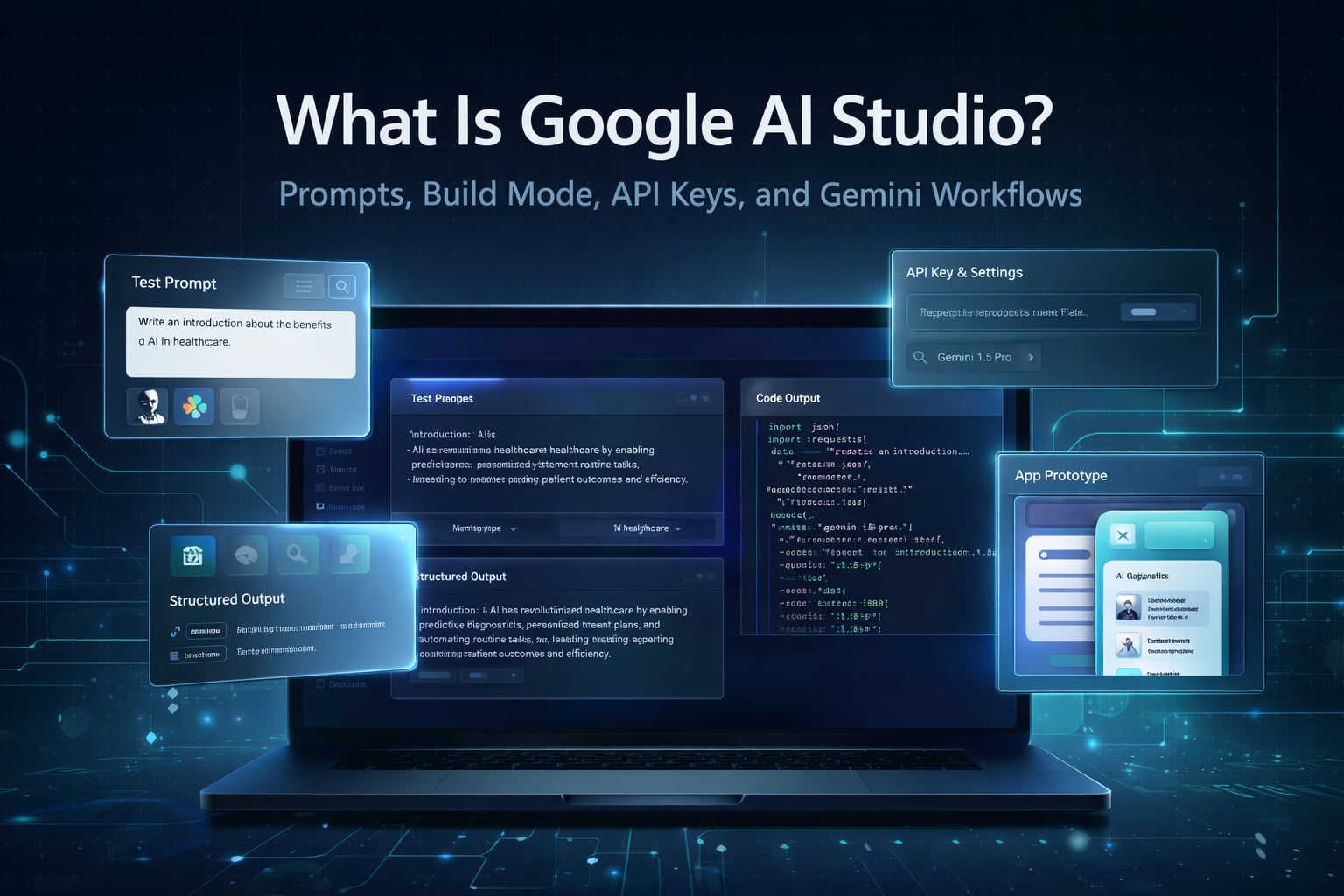
Google AI Studio is Google’s browser-based workspace for trying Gemini models, testing prompts, managing Gemini API keys, and now building full-stack AI prototypes without leaving the browser.
If Gemini the app is mainly for end-user chat, AI Studio is for builders. It sits closer to the actual development workflow: prompt design, multimodal testing, structured output, tool use, API access, and quick app generation. As of March 26, 2026, Google’s official docs still position it as the fastest way to start building with Gemini.
If you already follow the AI Engineering hub, the LLM agents hub, or adjacent posts like What Is Google Stitch? How to Use Google’s AI UI Tool, What is MCP (Model Context Protocol)? Understanding the Differences, and the broader AI Agents category, AI Studio belongs in that same shift: AI tools are moving from novelty chats into practical development surfaces.
Table of Contents
Open Table of Contents
- What Is Google AI Studio?
- Google AI Studio vs Gemini App vs Vertex AI
- What You Can Do in Google AI Studio Today
- How Google AI Studio Fits into a Real Workflow
- How to Get Started with Google AI Studio
- How to Get the Best Out of Google AI Studio
- 1. Treat it like a lab, not a chatbot
- 2. Separate role, task, constraints, and format
- 3. Build a small evaluation set
- 4. Use structured output whenever downstream code cares
- 5. Give the model the right files, not just a summary
- 6. Keep Build mode prompts grounded in real product constraints
- 7. Review generated code like a real engineer
- 8. Organize projects and keys intentionally
- 9. Know when to stop iterating inside AI Studio
- Prompt Patterns That Usually Work Better
- Where Google AI Studio Is Strongest
- Where Google AI Studio Still Falls Short
- Real-World Workflow Examples
- FAQs
- 1. What is Google AI Studio in one sentence?
- 2. How is Google AI Studio different from the Gemini app?
- 3. Is Google AI Studio only for prompt engineering?
- 4. Can I ship production apps directly from AI Studio?
- 5. What is the best way to improve results in AI Studio?
- 6. When should I use structured output in AI Studio?
- Conclusion
- References
- YouTube Videos
What Is Google AI Studio?
The short version is simple:
Google AI Studio is Google’s developer console for experimenting with Gemini models and turning those experiments into code, apps, and API workflows.
That definition matters because many people confuse three different things:
- Gemini models are the actual AI models.
- Gemini the app is the consumer-facing chat product.
- Google AI Studio is the builder interface for testing and using Gemini in development workflows.
In practice, AI Studio gives you a place to:
- try different Gemini models quickly
- write and refine prompts
- add system instructions and test conversations
- upload files or multimodal inputs
- turn on tools like structured output or function calling
- get API keys and connect code
- prototype apps directly in the browser
That is why AI Studio is more than a toy playground. It is the fastest experimentation layer in Google’s Gemini developer stack.
Google AI Studio vs Gemini App vs Vertex AI
This is one of the most important distinctions to understand.
Gemini app
The Gemini app is mainly for end users. You ask questions, brainstorm, summarize, write, and explore ideas. It is optimized for assistant-style usage.
Google AI Studio
Google AI Studio is for developers, students, researchers, and technical teams who want direct control over prompts, tools, model settings, API keys, and prototypes.
Vertex AI
Vertex AI is the broader Google Cloud platform for production and enterprise-scale AI work. That usually matters more when you need deeper governance, managed infrastructure, organizational controls, or broader cloud integration.
The practical mental model is:
| Product | Best Use |
|---|---|
| Gemini app | General-purpose chat and productivity |
| Google AI Studio | Rapid prompt iteration, API onboarding, multimodal testing, fast prototypes |
| Vertex AI | Larger-scale cloud and enterprise AI deployment |
That last distinction is partly an inference from how Google positions these products across its developer and cloud properties, but it is the most useful working model for decision-making.
What You Can Do in Google AI Studio Today
As of March 19, 2026, the current official docs and product pages point to several core capabilities.
1. Try prompts against Gemini models
This is still the center of AI Studio.
You can open the chat interface, choose a model, add system instructions, test different prompt variations, and inspect how the model responds. Google’s quickstart still frames AI Studio as the place to quickly try models and experiment with prompts before you click Get code and move into the Gemini API.
That makes AI Studio especially useful for:
- prompt design
- role instruction tuning
- output-shape testing
- latency and quality comparison
- early proof-of-concept work
2. Adjust run settings and tool behavior
AI Studio also exposes the settings that matter when you move from casual prompting to application behavior.
The current quickstart docs call out a Run settings panel where you can adjust:
- model parameters
- safety settings
- structured output
- function calling
- code execution
- grounding and other tool options
This is a big part of why AI Studio is more valuable than a plain chat box. You are not only asking for an answer. You are shaping how the model behaves in a repeatable way.
3. Work with multimodal inputs
AI Studio is built around Gemini’s multimodal capabilities, which means you are not limited to text-only experiments. Depending on the flow you use, you can work with documents, images, audio, video, and other file inputs.
That matters for real applications because many useful AI workflows are not just “ask a question in plain text.” They are things like:
- summarize a PDF
- extract fields from a form image
- compare screenshots
- answer questions over uploaded documentation
- respond to voice or streamed input
4. Create and manage API keys and projects
One of AI Studio’s most practical jobs is onboarding you into the Gemini API.
Google’s API key docs explain that AI Studio provides a lightweight interface over Google Cloud projects. For new users, AI Studio can create a default project and API key after Terms of Service are accepted, which removes a lot of setup friction.
So AI Studio is not just where you test prompts. It is also where you:
- create Gemini API keys
- import projects
- organize usage per project
- monitor usage from the dashboard
- move from free experimentation into paid tiers when needed
5. Build apps in Build mode
Build mode is one of the biggest reasons AI Studio matters more in 2026 than it did earlier.
Google’s Build mode docs, updated on March 13, 2026, describe AI Studio as supporting full-stack runtimes so you can generate and refine applications through natural-language prompting. The docs currently highlight:
- a web frontend, with React as the default
- a Node.js server-side runtime
- npm package support
- secrets management
- multiplayer support
- Firebase setup for Firestore and authentication
- GitHub export
- Cloud Run deployment
There is also an annotation workflow, which lets you point at part of a UI and request a targeted change instead of writing a vague follow-up prompt.
That pushes AI Studio beyond “prompt playground” into “browser-based AI prototyping environment.”
6. Share prototypes and bridge into code
Once a prompt or build is working well, AI Studio gives you a path outward:
- click Get code for API integration
- download or export projects
- push to GitHub
- deploy through Cloud Run
This is important because the best AI tooling reduces handoff friction. AI Studio is useful precisely because it does not force you to stay inside the interface forever.
How Google AI Studio Fits into a Real Workflow
Here is the cleanest way to think about it:
flowchart TD
  A[Idea or use case] --> B[Prompt in Google AI Studio]
  B --> C[Test model, system instructions, and settings]
  C --> D[Turn on tools or structured output]
  D --> E{What do you need next?}
  E --> F[Get code for Gemini API]
  E --> G[Build mode app prototype]
  F --> H[Integrate into local codebase]
  G --> I[Refine in browser or export]
  H --> J[Production app]
  I --> J
The reason this matters is that AI Studio works best when you use it as a bridge, not as your entire software lifecycle.
It is strong at:
- idea validation
- prompt refinement
- quick multimodal tests
- fast app scaffolding
It is weaker at:
- production architecture
- deep observability
- long-term maintainability
- enterprise governance
That is normal. The goal is not to force AI Studio to do everything. The goal is to let it accelerate the messy early stage where humans usually waste the most time.
How to Get Started with Google AI Studio
If you are brand new to it, the simplest path looks like this.
1. Sign in to AI Studio
Start at aistudio.google.com or the Gemini developer docs. Google’s Workspace documentation says Workspace users have access by default, though admins can restrict it for organizations.
2. Start with a specific use case
Do not begin with “show me what this can do.”
Start with something concrete:
- build a JSON extractor
- test a support assistant prompt
- prototype a document Q&A flow
- generate a small internal dashboard
Specific goals make the interface immediately more useful.
3. Choose the right mode
If you are experimenting with model behavior, start in Chat.
If you want to explore real-time or streaming behavior, use the relevant live or streaming interface.
If you want a working prototype or mini app, move to Build mode.
4. Add system instructions early
Most weak AI Studio outputs come from people skipping this step.
System instructions are where you define:
- role
- tone
- rules
- boundaries
- response format
Without that, the model improvises too much.
5. Test with realistic inputs
If your future app will handle long documents, messy support tickets, screenshots, or semi-structured data, test with those actual patterns in AI Studio.
Do not optimize a prompt against toy examples and then act surprised when real input breaks it.
6. Turn on only the tools you need
Structured output, function calling, code execution, and grounding are powerful, but they should be enabled deliberately. Extra tools add complexity. Start narrow, then layer capability only when the use case justifies it.
7. Move the result into code
Once the prompt works consistently, use Get code or export the app so the real engineering work can continue in your actual codebase.
8. Handle API keys correctly
Use AI Studio to create the key, but do not treat AI Studio as your secret manager forever.
For local development, move the key into an environment variable like GEMINI_API_KEY. For larger apps, use a proper server-side secret workflow.
9. Understand the cost model
Google’s billing docs say new accounts begin on the Free tier and that Google AI Studio usage itself remains free of charge. But higher rate limits, some advanced usage patterns, and stronger paid-tier controls may require linking billing to a project.
So the practical rule is:
- start in free mode
- link billing when your actual workload demands it
- monitor usage before you get surprised
How to Get the Best Out of Google AI Studio
This is the part that matters most in practice.
1. Treat it like a lab, not a chatbot
The people who get mediocre value from AI Studio usually use it as a fancier search box.
The people who get strong value use it as a testing environment:
- same task
- multiple prompt versions
- controlled input set
- clear success criteria
That mindset changes everything.
2. Separate role, task, constraints, and format
This structure works much better than one giant paragraph:
Role:
You are a product support assistant for a SaaS billing platform.

Task:
Answer customer questions using the policy below.

Constraints:
- Do not invent refund policies
- Ask one clarifying question if account status is missing
- Keep replies under 120 words

Output format:
- Final answer
- Confidence: high, medium, or low
When prompts fail, it is often because the model was never given a clean structure to follow.
3. Build a small evaluation set
Before you trust a prompt, test it against 5-10 realistic inputs that reflect your actual use case.
For example:
- easy case
- ambiguous case
- malformed input
- long input
- adversarial input
This is the fastest way to discover whether your good-looking prompt is actually reliable.
4. Use structured output whenever downstream code cares
If the answer will feed an API, form, parser, automation step, or agent workflow, ask for structured output instead of free-form prose.
This is one of the biggest upgrades from casual AI use to usable AI engineering.
Free-form text is good for humans. Structured output is better for systems.
5. Give the model the right files, not just a summary
If AI Studio is going to reason over a product spec, screenshot, PDF, or dataset excerpt, upload the source material when appropriate.
A short summary helps, but direct context usually helps more. The strongest prompts combine:
- the task
- the expected output
- the actual source material
6. Keep Build mode prompts grounded in real product constraints
Weak Build mode prompt:
Make an AI app for me.Stronger Build mode prompt:
Create a small internal web app for support managers.
Features: ticket summary list, priority filter, SLA breach badge,
conversation detail panel, and a Gemini-powered reply draft box.
Use a clean B2B dashboard layout and keep the code simple.
The more specific your user, workflow, data, and layout requirements are, the more useful the generated output becomes.
7. Review generated code like a real engineer
This is non-negotiable.
AI Studio can help with scaffolding, but you still need to review:
- auth boundaries
- key handling
- accessibility
- error handling
- dependency quality
- performance
- test coverage
Treat generated code as a draft, not as truth.
8. Organize projects and keys intentionally
Do not run every experiment in one giant bucket.
Create separate projects when the use cases diverge. That makes it easier to track:
- usage
- rate limits
- ownership
- billing
- future cleanup
9. Know when to stop iterating inside AI Studio
AI Studio is excellent for fast loops.
It is not where every serious workflow should stay forever.
Move out when you need:
- source control discipline
- reproducible environments
- CI/CD
- server-side architecture
- shared engineering ownership
The best use of AI Studio is usually to shorten the path to that handoff, not replace it.
Prompt Patterns That Usually Work Better
These prompt shapes tend to produce better results than vague, one-line requests.
1. Extraction prompt
Extract invoice data from this PDF.
Return JSON with:
- invoice_number
- vendor_name
- invoice_date
- due_date
- line_items
- total_amount

If a field is missing, return null instead of guessing.
Why it works:
- clear task
- explicit schema
- anti-hallucination rule
2. Support assistant prompt
You are a customer support assistant for a B2B payroll platform.
Answer using only the policy notes provided in the uploaded file.
If the answer is not supported by the file, say you are unsure.
Use a calm professional tone and keep the reply under 100 words.
Why it works:
- grounded source
- clear boundary
- tone control
- concise response target
3. Build mode prototype prompt
Build a small web app for reviewing product feedback.
Screens:
- feedback inbox
- detail drawer
- sentiment summary
- tag filters

Add a server-side route for storing notes, use simple mock data,
and keep the interface readable on desktop and mobile.
Why it works:
- explicit app shape
- clear screen list
- backend hint
- realistic scope
4. Revision prompt
Keep the current structure, but reduce visual clutter.
Use fewer borders, improve spacing, and make the primary action
more obvious without changing the information architecture.
Why it works:
- preserves what is already working
- changes one axis at a time
- gives a design target instead of a generic complaint
Where Google AI Studio Is Strongest
Fast prompt iteration
If you want to compare prompt variants, system instructions, settings, and model behavior quickly, AI Studio is hard to beat.
API onboarding
AI Studio removes a lot of early friction by combining experimentation with API key creation and project setup in one place.
Multimodal prototyping
It is a natural place to test document, image, audio, and mixed-input use cases before writing full application code.
Prototype generation
Build mode is useful when you want to get from idea to a working draft fast, especially for internal tools, demos, hackathon apps, or proof-of-concept workflows.
Learning and experimentation
For students, solo builders, and engineers exploring the Gemini ecosystem, AI Studio gives a much faster feedback loop than starting directly in a blank code editor.
Where Google AI Studio Still Falls Short
AI Studio is valuable, but it has clear limits.
1. It does not remove the need for engineering judgment
A prompt that “looks good” is not the same thing as a prompt that is reliable under real-world conditions.
2. Build mode is not a replacement for production architecture
Generated apps still need proper backend structure, security review, observability, testing, and long-term maintainability work.
3. Prompt experiments can create false confidence
A workflow may appear solid on three hand-picked examples and still fail badly on real traffic or messy user input.
4. Free experimentation can hide future operational needs
Project structure, key management, logging, spend caps, and review workflows matter more as soon as a prototype becomes real.
5. Product boundaries can still feel fragmented
Google’s AI ecosystem includes Gemini, AI Studio, Vertex AI, multiple model families, and several tool surfaces. That flexibility is powerful, but it can also be confusing for new users.
Real-World Workflow Examples
1. Developer validating a support assistant
Workflow:
- Upload policy documents into AI Studio.
- Write a grounded support prompt with clear refusal rules.
- Test 10 representative customer questions.
- Turn on structured output if the result needs to feed a CRM.
- Click Get code and integrate the flow into the real backend.
Best outcome:
You validate behavior before building the full product surface.
2. Product team prototyping an internal AI tool
Workflow:
- Use Build mode to generate a first draft.
- Refine layout, flows, and component states in-browser.
- Export the code to GitHub.
- Add real auth, logging, and backend integration externally.
- Deploy a cleaner version after engineering review.
Best outcome:
You reduce blank-page time without pretending the prototype is already production-ready.
3. Analyst building a document extraction workflow
Workflow:
- Upload several real documents.
- Define an exact JSON schema.
- Test failure cases where fields are missing or ambiguous.
- Compare outputs across prompt variants.
- Move the stable version into an automated pipeline.
Best outcome:
You use AI Studio as an evaluation lab before automating the task.
FAQs
1. What is Google AI Studio in one sentence?
Google AI Studio is Google’s browser-based developer environment for experimenting with Gemini models, testing prompts and tools, managing Gemini API keys, and building early AI-powered prototypes.
2. How is Google AI Studio different from the Gemini app?
The Gemini app is mainly a consumer assistant experience. Google AI Studio is built for developers who need control over prompts, settings, tools, files, API keys, and prototype generation.
3. Is Google AI Studio only for prompt engineering?
No. Prompting is still central, but AI Studio also handles multimodal testing, API key and project setup, structured outputs, tool toggles, and Build mode for full-stack prototypes.
4. Can I ship production apps directly from AI Studio?
You can get surprisingly far with it, especially for prototypes and demos, but you should not confuse that with full production readiness. Security, architecture, testing, access control, observability, and long-term maintainability still need normal engineering discipline.
5. What is the best way to improve results in AI Studio?
Use clearer system instructions, realistic test inputs, explicit output formats, narrow scope, and evaluation cases. Most prompt failures come from vague instructions and weak testing, not from the model being unusable.
6. When should I use structured output in AI Studio?
Use structured output whenever another system needs to consume the result reliably. If a human is just going to read the answer, prose may be fine. If code needs to parse it, structured output is usually the better choice.
Conclusion
Google AI Studio is best understood as Google’s fast path from idea to Gemini-powered prototype.
It is useful because it combines several normally separate steps in one place:
- model experimentation
- prompt refinement
- multimodal testing
- API key setup
- prototype generation
That makes it one of the most practical entry points into the Gemini ecosystem.
The best way to use it is not to ask random prompts and hope for magic. The best way is to treat it like a development lab: define a real task, test with realistic inputs, use structure, review generated code, and move stable work into your actual engineering workflow when it is ready.
If you use it that way, Google AI Studio can save real time. If you use it like a vague demo surface, it will mostly give you vague results faster.
References
- Google AI Studio overview
https://ai.google.dev/aistudio/ - Google AI Studio quickstart
https://ai.google.dev/gemini-api/docs/ai-studio-quickstart - Build apps in Google AI Studio
https://ai.google.dev/gemini-api/docs/aistudio-build-mode - Gemini API billing
https://ai.google.dev/gemini-api/docs/billing/
YouTube Videos
- “New & Improved API Key and Project Management in Google AI Studio” - Google for Developers
https://www.youtube.com/watch?v=zlDziSQ4JTk - “What’s new in Google AI” - Google for Developers
https://www.youtube.com/watch?v=fH4xqeu7GT0